
The Opportunity page is where you manage a sales lead in Workglue. It is organized into multiple tabs across the top, with the Overview tab loading by default. The Opportunity page does not have a Finances tab or a Job Log tab. Those are added when the Opportunity is converted to a Job.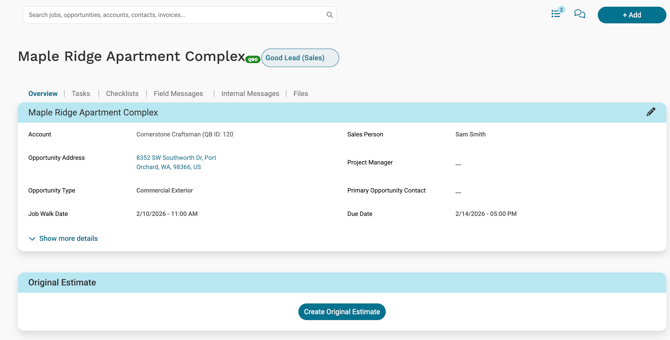
Opportunity header
At the top of every Opportunity page:
- Opportunity name. The name of the Opportunity as it appears throughout Workglue.
- Job stage pill. The current Sales stage of the Opportunity, such as Good Lead (Sales) or Unqualified Lead (Sales). Selecting the pill opens the stage dropdown to change the stage.
If required fields are missing, a yellow banner appears at the top of the page listing what needs to be completed before the Opportunity can be converted to a Job.
Tabs
The Opportunity page has these tabs:
- Overview
- Tasks
- Checklists
- Field Messages
- Internal Messages
- Files
Select a tab to switch to it. The Overview tab loads by default when you open the Opportunity.
Overview
The Overview tab is the summary of the Opportunity. It contains the Opportunity details, the original estimate, and snapshots of tasks, activity, field messages, and checklists. To make changes to the details, select the pencil icon in the top right of the details section.
Opportunity details
The details section shows:
- Account. The customer the Opportunity belongs to.
- Opportunity Address. The address where the work will be performed.
- Opportunity Type. The type of work, such as Residential Interior or Commercial Exterior.
- Job Walk Date. The scheduled date and time for the site visit.
- Sales Person. The person responsible for the sale.
- Project Manager. The project manager assigned to the Opportunity.
- Primary Opportunity Contact. The main contact for the Opportunity.
- Due Date. The deadline for the Opportunity.
- Billing Address 1 and 2.
- Billing City.
- Billing State/Province.
- Billing Zip.
- Tax Exempt.
- Tax Exempt Reason.
- Contacts. All contacts attached to the Opportunity.
- Custom Fields. Company-specific fields, such as Colors.
- Scope of Work. A description of the work to be performed.
Select Show more details to expand the full list. Select Hide details to collapse it.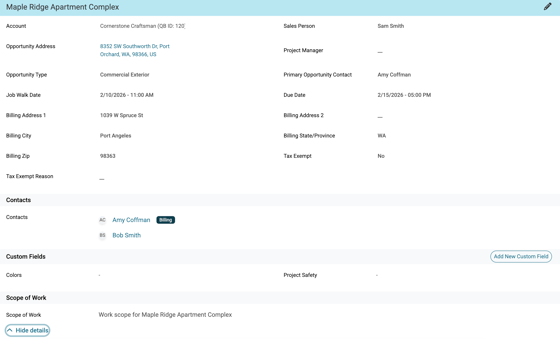
Original Estimate
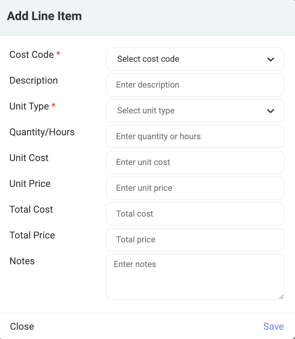
The Original Estimate section is on the Overview tab of every Opportunity. This is where the estimate is built before the Opportunity becomes a Job. After selecting Create an Original Estimate, the +Add Line Item will appear.
Select Add Line Item to see:
- Cost Code. The cost code assigned to each line item.
- Description. A description of the work or material.
- Unit Type. The unit of measure, such as Hours or Gallon.
- Quantity/Hours.
- Unit Cost. What the unit costs you.
- Unit Price. What you charge the customer.
- Total Cost.
- Total Price.
- Notes.
 From the Original Estimate you can:
- Add line items using Add Line Item.
- Lock the estimate using Lock Estimate.
- View the estimate change log using Logs.
- Delete the estimate using Delete Estimate.
- Create a quote in PaintScout using Create Quote in PaintScout.
Once the Opportunity is converted to a Job, the Original Estimate moves to the Finances tab on the Job page. It is no longer visible on the Overview tab.
Overview snapshots
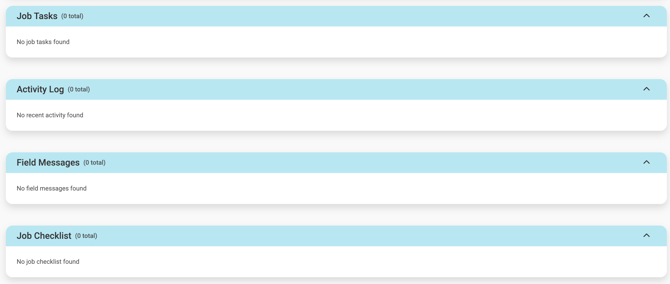
The bottom of the Overview tab shows summaries pulled from other tabs:
- Job Tasks. A summary of Tasks on the Opportunity. Manage Tasks on the Tasks tab.
- Activity Log. A log of stage changes and other significant events on the Opportunity.
- Field Messages. A summary of Field Messages. Manage Field Messages on the Field Messages tab.
- Job Checklist. A summary of applied Checklists. Manage Checklists on the Checklists tab.
Tasks
One-off to-dos assigned to workers on the Opportunity, with optional due dates, descriptions, completion notifications, and alerts.
Field Messages
Notes from the field about the Opportunity that the office can see, with the creator and timestamp recorded. For details, see Internal and Field Messages.
Internal Messages
Threaded conversations between office users about the Opportunity. Can be a job-wide thread or a thread between selected users. For details, see Internal and Field Messages.
Files
Documents and photos attached to the Opportunity are organized into file categories. File categories are managed in My Account > Custom Fields > File Categories.