
The Job page is where everything for an active project lives. It is organized into eight tabs across the top, with the Overview tab loading by default.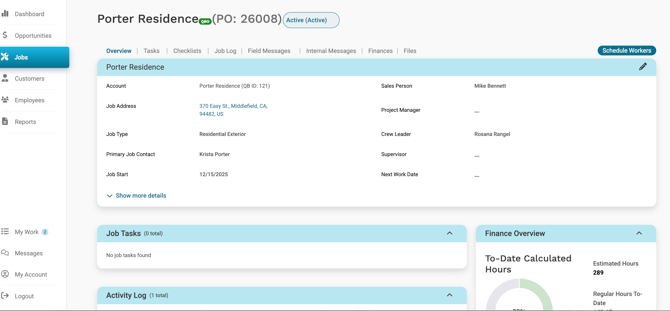
Job header
At the top of every Job page you will find:
- Job name. With a QBO badge if the Job is synced to QuickBooks Online.
- PO number. The Workglue-generated number assigned to the Job.
- Job stage. The current stage of the Job, such as Accepted by Customer. Selecting the pill opens the dropdown to change the Job's stage.
- Schedule Workers button. Opens the scheduling tool to assign workers to the Job.
Hover over the QBO badge on the Job name to see the QuickBooks ID for the Job. This is useful when troubleshooting with your accounting team.
Tabs
The Job page has eight tabs:
- Overview
- Tasks
- Checklists
- Job Log
- Field Messages
- Internal Messages
- Finances
- Files
Select a tab to switch to it. The Overview tab loads by default when you open the Job.
Overview
The Overview tab is the summary of the Job. It pulls in the most important information from the other tabs so you can see the stage of the Job at a glance.
The Overview tab is read-only with one exception. The only thing you can edit directly on the Overview tab is the Job details section. To make changes, go to the tab where the information lives.
The Overview tab contains:
- Job details. Account, address, assignments (sales person, project manager, supervisor, crew leader), Job type, Job Start date, Next Work Date, billing fields, tax exempt status, Contacts, Scope of Work, and Custom Fields. Select Show more details to expand the full list.
- Job Tasks. A summary of Tasks assigned on the Job. Manage Tasks on the Tasks tab.
- Activity Log. A log of stage changes.
- Field Messages. Most recent Field Messages for this Job. View all Field Messages on the Field Messages tab.
- Checklists. Checklists attached to this Job. View and manage Checklists on the Checklists tab.
- Job Log. A summary of recent Job Logs. View Job Logs on the Job Log tab.
- Finance Overview. A summary of the Job's financials, including the project financial summary, To-Date Calculated Hours, and cost breakdown. Manage estimates, change orders, invoices, materials, and labor on the Finances tab.
Editing Job details
- Open the Job and stay on the Overview tab.
- Select the pencil icon in the top right of the Job details section.
- Update the fields you need to change.
- Save.
Job Start and Next Work Date are populated from the scheduler. Job Start is set when work is first scheduled on the Job. Next Work Date only appears when work is scheduled for a future date and does not include today.
Tasks
The Tasks tab is where one-off to-dos are assigned to workers on the Job. Each task has an assignee, a due date, a description, optional completion notifications, and optional alerts.
Checklists
The Checklists tab is where set lists of steps are applied to the Job from your company's checklist templates. Examples include Pre-Job Start Site Arrival and Job Final Steps.
Checklists may be assigned to a Job manually or by Automation.
Checklist templates are managed in My Account > Checklist Templates.
Job Log
The Job Log tab is where daily field reports from your crew live. Each entry includes a report name, log info, notes, and any attachments.
Field Messages
The Field Messages tab is where the field crew leaves notes about the Job for the office. Each note shows who created it and when.
For details, see Internal and Field Messages.
Internal Messages
The Internal Messages tab is where office users have threaded conversations about the Job. You can create a Job-wide thread that any office user can join, or a regular thread between selected users.
For details, see Internal and Field Messages.
Finances
The Finances tab is the financial picture of the Job. It contains:
- Financial Summary. Estimated labor, materials, equipment, contracted subs, projected gross profit, original estimate total, change order totals, and estimate total including changes.
- Cost Breakdown. Labor, materials, equipment, and subcontractor costs to date, current total cost, gross profit percentage, and current total gross profits.
- To-Date Calculated Hours. Estimated hours, regular hours to-date, OT hours to-date, available hours, and a percent complete indicator.
- Original Estimate. The estimate that carried over from the Opportunity. Can be locked, unlocked, generated as a PDF, and synced to QuickBooks.
- Change Orders. Scope or pricing changes added after the original estimate is locked.
- Invoices. Invoices created on the Job.
- Purchased Materials and Equipment To-Date. Materials and equipment costs logged against the Job.
- Labor by Cost Code. Hours and cost logged against the Job, broken down by cost code, with cumulative totals.
Files
The Files tab is where documents and photos attached to the Job are organized into file categories. Default categories include Receipts, Paint Scout Photos, Customer, and Opportunity Document. File categories are managed in My Account > Custom Fields > File Categories.