
A job is the central record in Workglue for a project your company is actively working on. It holds the scope, schedule, crew assignments, financials, communication, files, and field activity for that project. Other parts of Workglue, including the Dashboard, Status Manager, and Reports, pull their data from the job.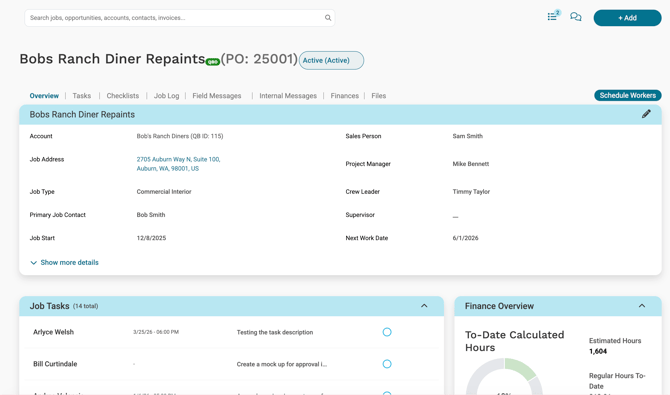
What is a Job?
A Job represents a project that is in progress or moving toward production. It is created when an Opportunity is converted to a Job by changing the stage to Active.
Each Job includes:
- Account and contacts. The customer, primary job contact, billing contact, and any other contacts attached to the Job.
- Job details. Job address, billing addresses, city, state or province, zip, job type, job start date, next work date, sales person, project manager, supervisor, crew leader, tax exempt status, tax exempt reason, and latest job log.
- Scope of work. Pulled from the original estimate or the PaintScout quote.
- Custom fields. Company-specific fields configured in your account settings.
- Financials. Original estimate, change orders, invoices, purchased materials and equipment, labor costs by cost code, and the project financial summary.
- Field activity. Tasks, checklists, job logs, field messages, internal messages, and files.
How a job is created
Jobs are created when an Opportunity's stage is changed to Active. At that point, the Opportunity is converted into a Job.
The estimate on the Job can be built in one of two ways during the Opportunity stage:
- Built directly in Workglue. Line items are added to the original estimate manually on the Opportunity.
- Built in PaintScout and synced back. A quote is created in PaintScout from the Workglue Opportunity, and the data flows back to Workglue when the quote is accepted or manually sent.
To learn more about how Opportunities become Jobs, see Creating Jobs.
The PaintScout flow
If your company uses PaintScout for quoting, the typical flow is:
- A lead comes into Workglue as an Opportunity.
- Create an original estimate on the Opportunity.
- Select Create Quote in PaintScout on the original estimate and choose an optional quote type and optional template.
- Build and accept the quote in PaintScout.
- The accepted quote syncs back to the Workglue Opportunity.
When the quote returns to Workglue, it populates several places at once:
- Scope of work. Line items from the quote populate the scope of work on the opportunity.
- Original estimate. All quote details populate the original estimate, including cost codes, descriptions, quantities, unit costs, and unit prices. Once the opportunity moves to Active and becomes a job, Lock Estimate and Send to QuickBooks are visible on the original estimate.
- Files. PDFs of the Quote and Work Order, along with any photos attached to PaintScout line items, sync to the file category set in your PaintScout integration settings.
Quotes can also be sent to Workglue manually from PaintScout, as long as the quote is linked to a Workglue opportunity. The PaintScout status does not need to change for the sync to work.
File categories for PaintScout PDFs and photos must be set in your PaintScout integration settings. If no file category is selected, the PDFs and photos will not appear on the job's Files tab. See PaintScout Integration for setup.
How a job functions in Workglue
Jobs are the center of activity in Workglue. Scheduling, time tracking, financials, and field communication all require an Active Job. Workers cannot log time or be scheduled against an Opportunity or a Closed Job.
- Account. Every Job belongs to one account. The Account holds the Customer, the list of Contacts, and the Job History for that Customer.
- Opportunity. Every Job starts as an Opportunity. When the Opportunity is converted, it becomes the Job.
- Original estimate. Carries over to the Job's Finances tab. Can be locked, unlocked, generated as a PDF, and synced to QuickBooks Online.
- PaintScout. When PaintScout is used for quoting, the Original Estimate, Scope of Work, and certain Files on the Job can originate from a PaintScout Quote tied to the Opportunity.
- Change orders. Scope or pricing changes made after the original estimate is locked, added on the Finances tab.
- Invoices. Created on the Finances tab. For accounts using the QuickBooks Online integration, invoices can be synced to QuickBooks Online.
- Timesheets. Labor logged against the Job flows into the Labor by Cost Code section on the Finances tab and into the To-Date Calculated Hours.
- Schedule. Workers scheduled on the Job appear on the Dashboard map and schedule, and their clock-in activity is reflected in the Job's labor and hours data.
The Job page
The Job page is organized into eight tabs. Each tab has its own dedicated help article. The tabs are:
- Overview. Summary of the Job, including account, addresses, assignments, scope of work, custom fields, contacts, and a snapshot of tasks, activity log, field messages, checklists, job logs, and the finance overview.
- Tasks. One-off to-dos assigned to specific workers on the Job, with optional due dates, descriptions, completion notifications, and alerts.
- Checklists. Structured lists of steps to complete on the Job, applied from your company's checklist templates.
- Job Log. Daily field reports submitted by your crew, including report name, log info, notes, and attachments.
- Field Messages. Notes from the field crew about the Job that the office can see, with the creator and timestamp recorded.
- Internal Messages. Threaded conversations between office users about the Job. Can be a job-wide thread that any office user can join, or a regular thread between selected users.
- Finances. The financial picture of the Job, including the project financial summary, cost breakdown, to-date calculated hours, original estimate, change orders, invoices, purchased materials and equipment, and labor by cost code.
- Files. Documents and photos attached to the Job, organized into file categories.
Job header
At the top of every Job page:
- Job name. With a QBO badge if the Job is synced to QuickBooks Online.
- PO number. The Workglue-generated purchase order number assigned to the Job.
- Job status pill. The current stage of the Job, such as Accepted by Customer. Selecting the pill opens the stage dropdown to change the Job's stage.
- Schedule Workers button. Opens the scheduling tool to assign workers to the Job. Available from the Overview tab.
Hover over the QBO badge on the job name to see the QuickBooks ID for the job. This is useful when troubleshooting sync issues with your accounting team.
Job stages
A Job moves through stages during its lifecycle across three categories: Sales, Active, and Closed. The current stage controls where the Job appears in lists and reports, and whether workers can log time against it. For the full list of stages and how they work, see Managing Job Stages.
Where Job-related settings live
Some elements of a Job are configured at the company level, not on the Job itself. These settings apply to every Job in your account.
- Checklist templates. Managed in My Account > Checklist Templates.
- File categories. Managed in My Account > Custom Fields > File Categories. Categories can be reordered, deleted, or marked as Restricted so only certain user roles can access them.
- Custom fields. Managed in My Account > Custom Fields. New custom fields can also be added directly from the Overview tab of an individual Job.
- PaintScout integration. Quote types, quote templates, and file category mapping for synced PDFs and photos are managed in My Account > Integrations > PaintScout.
Deleting a file category in My Account > Custom Fields > File Categories removes it from every job in your account. Any files already assigned to that category will need to be reassigned.
What you can do in a Job
From inside a Job you can:
- Update Job Details.
- Change the Job's Stage.
- Schedule Workers and view their clock-in activity.
- Assign Tasks and apply Checklists.
- Review and respond to Field Messages and Internal Messages.
- Submit and review Job Logs.
- Manage the Original Estimate, Change Orders, Invoices, Materials, and Labor on the Finances tab.
- Attach Files and Photos to the appropriate category.
- Generate PDFs of the Estimate and Change Orders.
- Sync the Estimate and Change orders to QuickBooks Online.