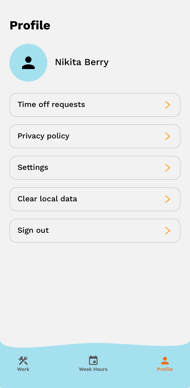
The Workglue mobile app is for field workers, crew leaders, supervisors, and anyone working on-site. Use the app to view your schedule, clock in and out, access Job information, communicate with the office, upload photos, and submit time off requests. Your office admin controls what you can see and do in the app through your assigned role and permissions.
Before you start
You will need a smartphone running iOS or Android, a mobile number that matches the number your office admin has on file for you in Workglue, and the ability to receive SMS messages. The Workglue mobile app is free to download from the Apple App Store and the Google Play Store.
How to log in to the Workglue mobile app
- Download the Workglue V2 mobile app from the Apple App Store or the Google Play Store.
- Open the app.
- Enter your Phone Number.
- Enter the Verification Code sent to you via SMS.
- You are now logged in.
If you do not receive an SMS verification code, check with your office admin to confirm the mobile number on file for you in Workglue is correct.
Once you are logged in, your Job schedule and tasks appear on the home screen. If your role allows it, you also see a button for Unscheduled Jobs, which lists all Active Jobs in Workglue.
Your office admin controls your mobile app permissions. If something is missing or you cannot access a feature, contact them.
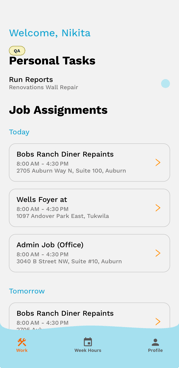 Your schedule
When you open the app, your schedule appears on the home screen. Tap a Job to open the Job Details page.
If you do not see a Job you are expecting, you have not been scheduled for it. Reach out to your supervisor or office admin.
Clocking in and out
- Tap the Job on your schedule.
- Tap Clock In to start your shift.
- Tap Clock Out when your shift ends.
- If your time entry needs to be adjusted, add a note for the office before clocking out.
Job Details
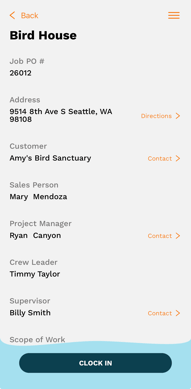
The Job Details page shows you what you need to know about the Job.
- Contacts. Tap any contact to call them directly.
- Address. Tap directions to select a navigation app.
- Scope of Work. Details about work to be completed for this job.
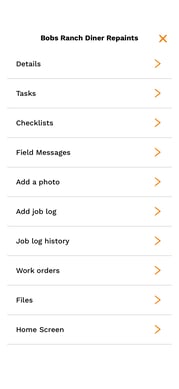
Job Menu
- Job Details. General information about the job.
- Job Tasks. Individual to-dos assigned to this Job.
- Job Checklists. Predefined groups of related tasks assigned to this Job.
- Field Messages. Communication between the field and the office about this Job.
- Job Logs. Daily logs you add from the field.
- Work Orders. Labor cost codes and materials for the Job.
- Files. Photos and documents attached to the Job.
Job Tasks and Job Checklists
- Job Task. A single to-do, for example "Pick up paint from the store."
- Job Checklist. A predefined group of related tasks, for example a "Site Setup" checklist that includes setting up shop, laying drop sheets, and an equipment check.
To complete a Job Task or a Job Checklist item, tap the checkbox, add notes if applicable, and save.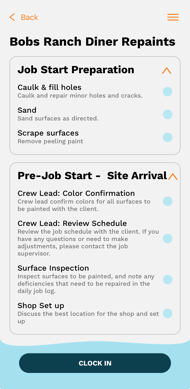
Field Messages
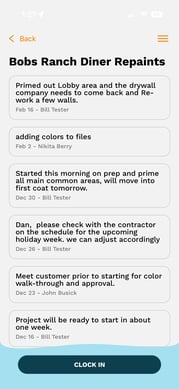
Field Messages are how you communicate with the office and other crew members about a specific Job.
- Anyone with access to a Job in the web or mobile app can view Field Messages on that Job.
- Use Field Messages for Job-related updates or questions.
Job Logs
Job Logs are daily entries you add from the field. Each log can include:
- Notes. Text describing what happened on the Job today.
- Photos. Images from the field.
- Videos. Video clips from the field.
Once added, Job Logs are visible in both the mobile app and the web app. Office staff can review them in real time.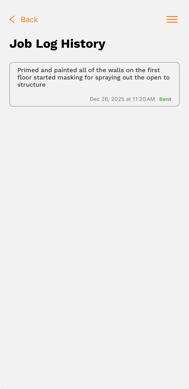
Work Orders
Work Orders show the labor cost codes and materials assigned to the Job. Use this to see what work is scoped out and what materials should be on-site.
Files
The Files tab shows photos and documents attached to the Job. You may view files added by the office and upload new ones from the field.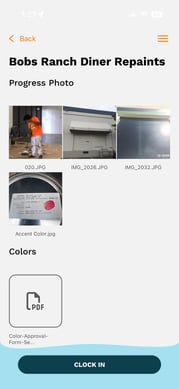
Week Hours
View your hours, review your time cards, and sign off on your hours in the app. At the end of a pay period, your office may request that you sign off on your hours.
- You receive a notification when a sign-off is requested.
- Open the timesheet.
- Review your hours.
- Sign off if everything is correct, or contact your office admin if there is a discrepancy.
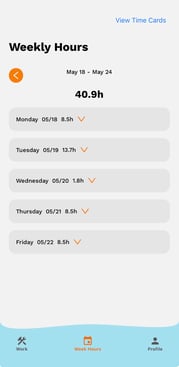
Sign-off requests can be sent multiple times in the same pay period if your hours need to be adjusted and re-approved.
Time off requests
You can request time off directly from the mobile app. After submitting a request, you can track its status in the app.
- Tap Profile.
- Tap Time off requests.
- Tap Request Time Off.
- Select the dates and time, add notes, and submit.
Your office admin reviews the request and either approves or denies it. You receive a notification when the status changes.