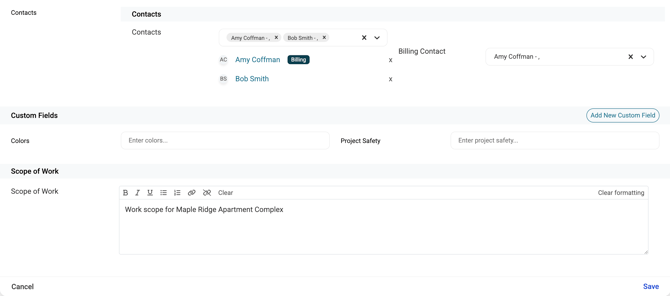
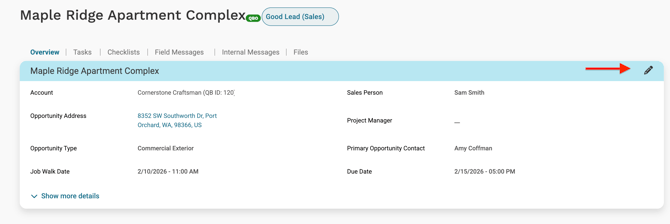
Opportunity details can be edited from the Overview tab. Select the pencil icon in the top right of the details section to open the editor. When you are done, select Save or Cancel to discard your changes.
How to edit Opportunity details
- Open the Opportunity and stay on the Overview tab.
- Select the pencil icon in the top right of the details section.
- Update the fields you need to change.
- Select Save.
Opportunity details fields
Opportunity information
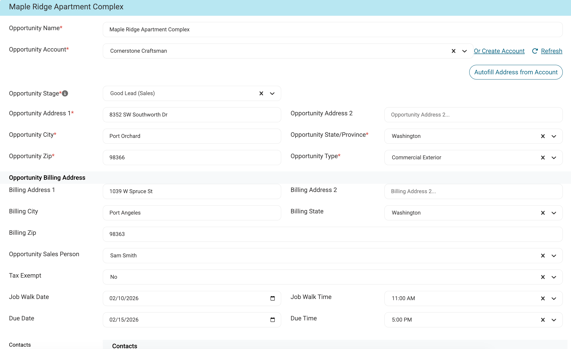
- Opportunity Name. The name of the Opportunity as it appears throughout Workglue. Must be unique across your account.
- Job Account. The customer account the Opportunity belongs to. Select Or Create Account to create a new account, or Refresh to reload the account list. Select Autofill Address from Account to populate the address fields from the account address.
- Job Stage. The current stage of the Opportunity. Changing this field has the same effect as changing the status pill from the header.
- Opportunity Address. The address where the work will be performed.
- Opportunity Address 2. Secondary address line, if applicable.
- City.
- State/Province.
- Zip/Postal.
- Opportunity Type. The type of work, such as Residential Interior or Commercial Exterior.
- Job Walk Date. The scheduled date and time for the site visit.
- Due Date. The deadline for the Opportunity.
Billing address
- Billing Address 1.
- Billing Address 2.
- Billing City.
- Billing State/Province.
- Billing Zip/Postal.
Assignments
- Sales Person.
- Project Manager.
- Primary Opportunity Contact.
Other fields
- Tax Exempt.
- Tax Exempt Reason.
Contacts
- Contacts. Contacts attached to this Opportunity. Contacts can be added and removed here.
- Billing Contact. The contact responsible for billing on this Opportunity.
Custom fields
Custom fields are company-specific fields configured for your account, such as Colors or Project Safety. Values can be entered or updated here.
Select Add New Custom Field to go to My Account > Custom Fields, where new field types can be created for the whole account. For more information, see Custom Fields.
Adding a new custom field applies it to every Job and Opportunity in your account, not just the one you are editing.
Scope of work
A description of the work to be performed.
Opportunity Name must be unique across your account. Duplicate names will cause issues in reports and across your pipeline.