
Jobs in Workglue are created when an Opportunity Job stage is changed to Active.
Before you start
Workglue requires certain Opportunity fields to be completed before an Active stage may be selected. Workglue will show a yellow banner at the top of the Opportunity listing any required fields that are still missing. The required fields are:
- Account. The customer the opportunity belongs to.
- Job name. The name on the opportunity record.
- Address 1. The job address.
- City.
- State or Province.
- Zip or Postal Code.
- Opportunity Type.
Once all required fields are filled, the yellow banner will disappear.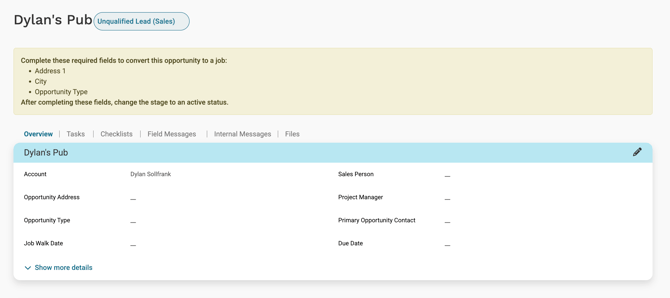
How to create a job
- Open the Opportunity you want to convert.
- Fill in any required fields listed in the yellow banner at the top of the opportunity.
- Select the status pill at the top of the opportunity.

- Change the stage to an active status.
- Select the green check mark.
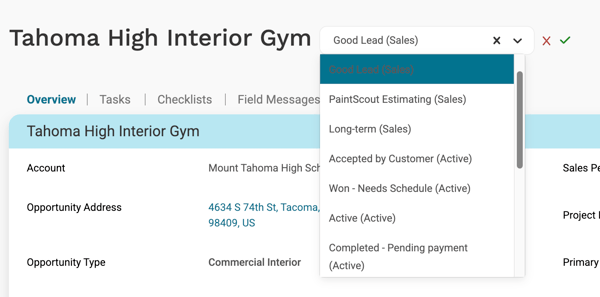
- The Opportunity is now a job.
What happens when an opportunity becomes a job
When the opportunity is converted to a job, several things change:
- Status. The Opportunity is now a job. The status pill reflects the new active stage, such as Accepted by Customer (Active) or Won - Needs Schedule.
- Finances tab. A Finances tab is added to the job page.
- Finance Overview. A Finance Overview widget is added to the Overview tab.
- Original estimate moves to Finances. The estimate built on the Opportunity moves to the Original Estimate section on the new Finances tab. From there, it can be locked, unlocked, generated as a PDF, and synced to QuickBooks.
- Schedule Workers button. Appears on the Overview tab. Workers can now be scheduled on the job.
- Time tracking. Time can be logged against the job. Workers cannot clock in to Opportunities or to jobs in a Sales or Closed stage.
- Activity log entry. A new entry is added to the Activity Log, logging the stage change, who made it, and when.
After the job is created
Once the job exists, the next steps are usually:
- Assign the project manager, supervisor, and crew leader on the Overview tab.
- Lock the original estimate.
- Send the estimate to QuickBooks Online if your company uses the QuickBooks integration.
- Schedule workers on the job.
QuickBooks Online and jobs
If your company uses the QuickBooks Online integration, the job is created in QuickBooks as a sub-customer under the main account when the original estimate is sent to QuickBooks. From that point forward, invoices created on the sub-customer in QuickBooks are visible in Workglue on the job's Finances tab, and financial information stays in sync between the two systems.
Most customers build the estimate in Workglue, send it to QuickBooks Online from the Finances tab, and then invoice from the QuickBooks Estimate that Workglue creates for that job.
For full setup and sync details, see QuickBooks Online Integration.